Navigating the Mobile App
Before using the mobile app
- You must have an existing account on https://fwwf.alces-flow.com
- A ranch must be set up with at least one active season
- You need internet connectivity to initialize your data
Getting Started
After completing getting access and installing the app on your iOS or Android device, you will arrive at the "My Ranches" page when you open the app and sign in for the first time.
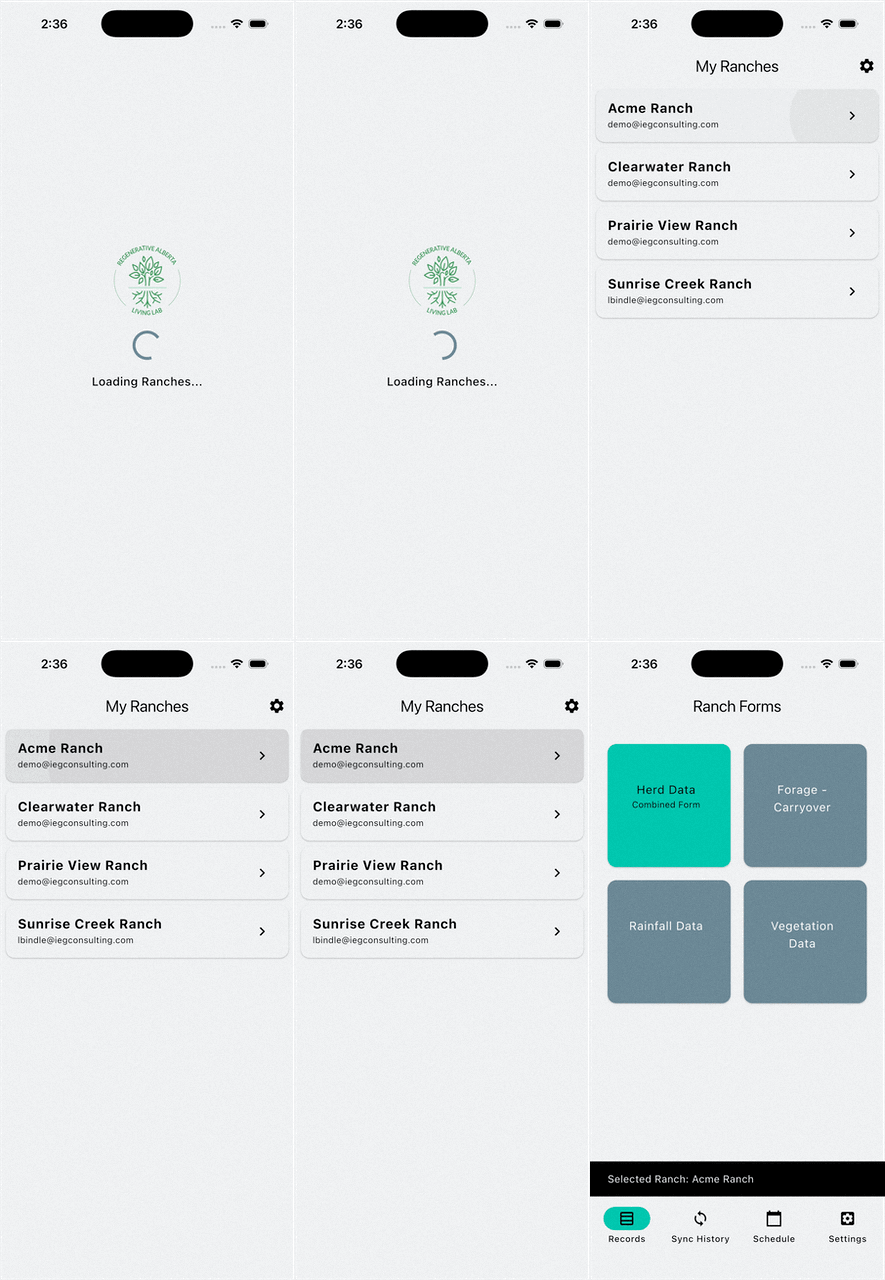
You will see a list of ranches you have access to. Tap a ranch to load it. Once you have loaded a ranch, you can use the tab bar at the bottom of the screen to navigate between different sections.
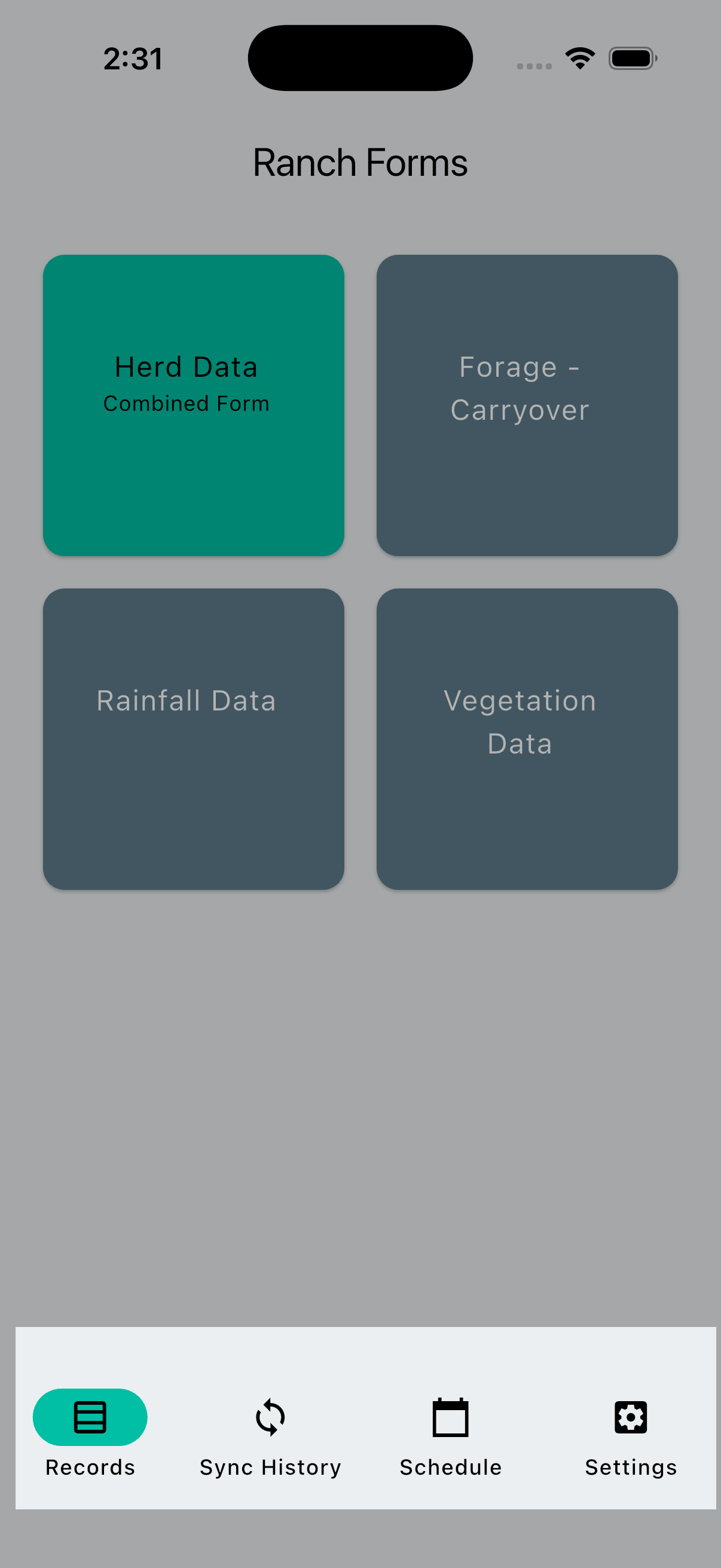
The available tabs are:
- Records: Create and submit grazing records including herd movements, herd size, forage carryover, vegetation data, and rainfall data.
- Sync History: Manage form submissions and sync status.
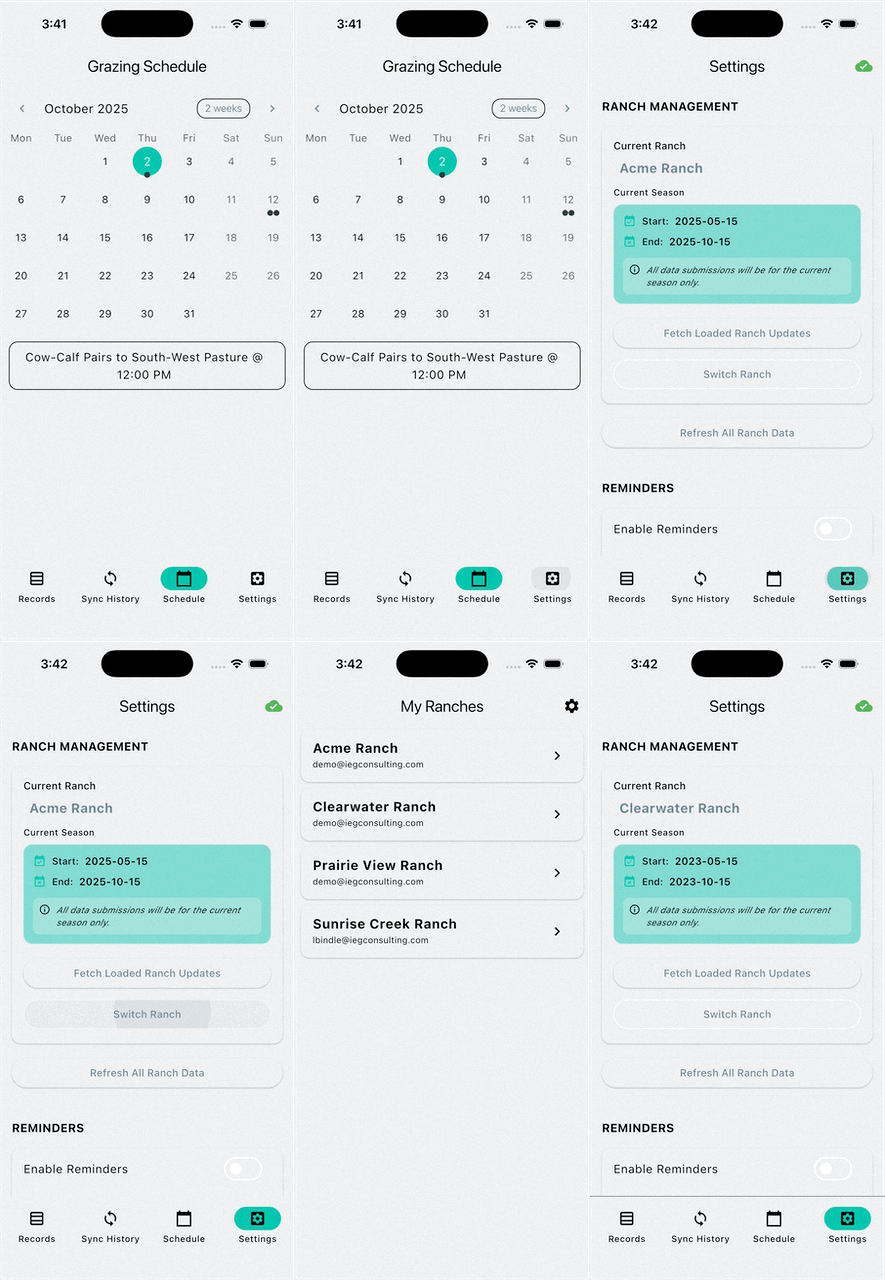
- Schedule: View scheduled herd movements.
- Settings: Manage notifciation settings, switch ranches, fetch updates, and view app information.
Records Tab
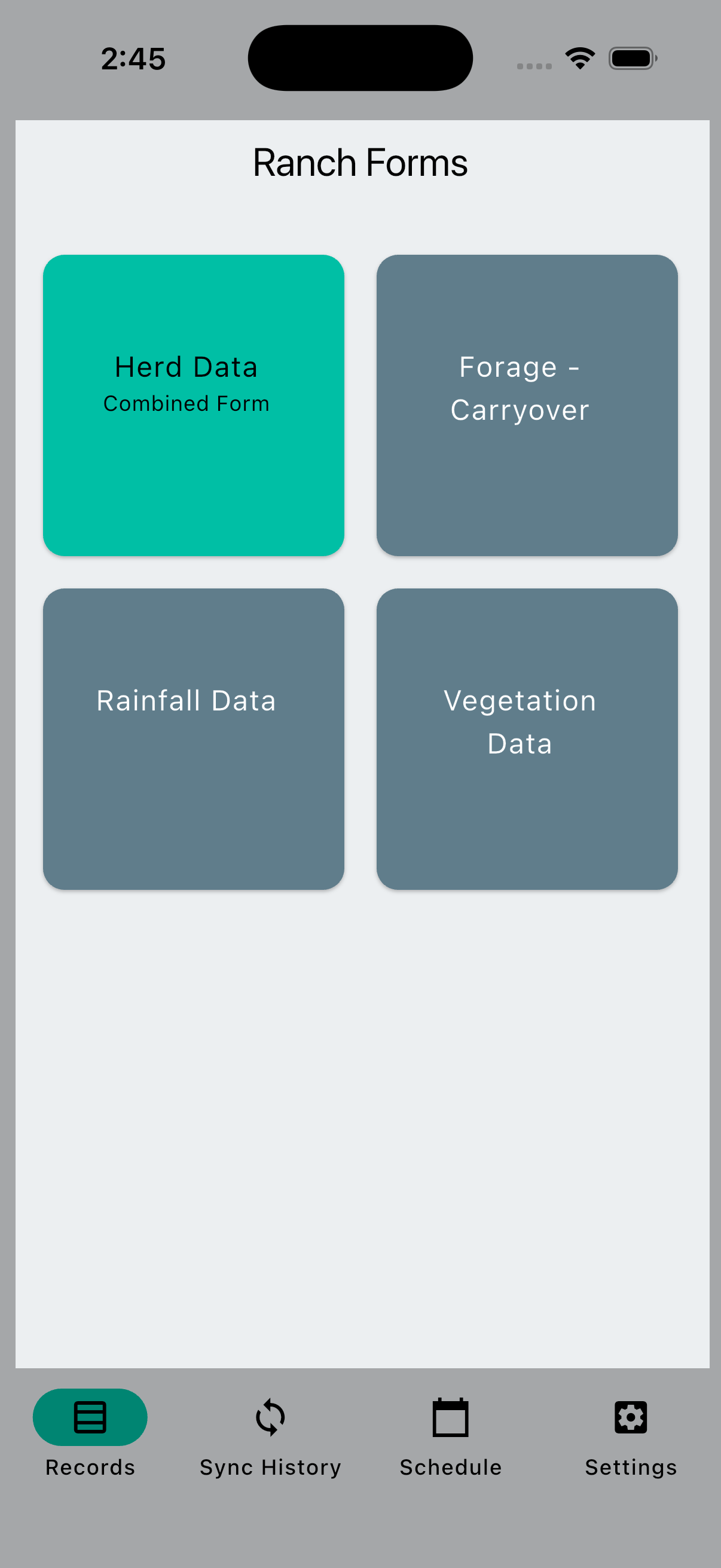
This tab is where you create and submit data collection forms. The available forms are outlined below.
| Form | Description |
|---|---|
| Herd Movement | Record herd movements with an optional herd size updates (SAU). |
| Herd Size | Record herd size updates (SAU). |
| Vegetation Data | Record vegetation measurements and type(s). Take supporting photos. |
| Rainfall Data | Record precipitation measurements. |
| Forage Carryover | Record the amount of forage available to carry forward into the next season. |
Sync History Tab
This tab allows you to manage form submissions and monitor their sync status. The app automatically sends submissions when network connectivity is available. You can also manually send submissions by tapping the button to send all submissions at once.
Mobile Storage
Submissions are stored locally on your device. Syncing is one-way: data is sent from your mobile device to the server."
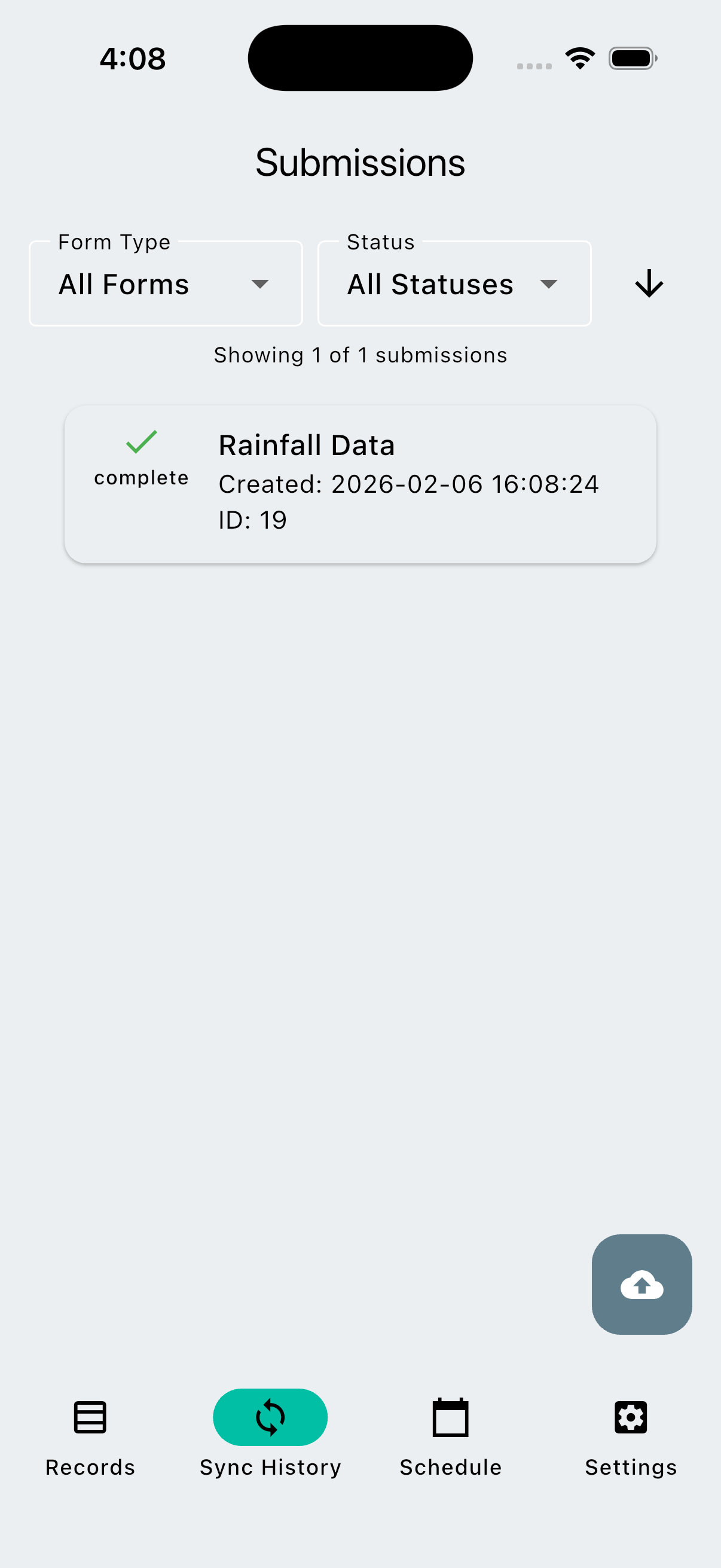
Each submission displays one of the following statuses:
| Status | Description |
|---|---|
| Complete | Successfully uploaded to server |
| Pending | Waiting to upload |
| Error | Failed to upload |
Managing Submissions
Manage submissions interactively using these actions:
| Action | How To |
|---|---|
| View submission details | Tap on the entry |
| Force send or Retry submission | Swipe right on the entry |
| Delete submission | Swipe left on the entry |
Force Sending Submissions
Forcing a submission to send when the status is already complete may result in duplicate entries."
Schedule Tab
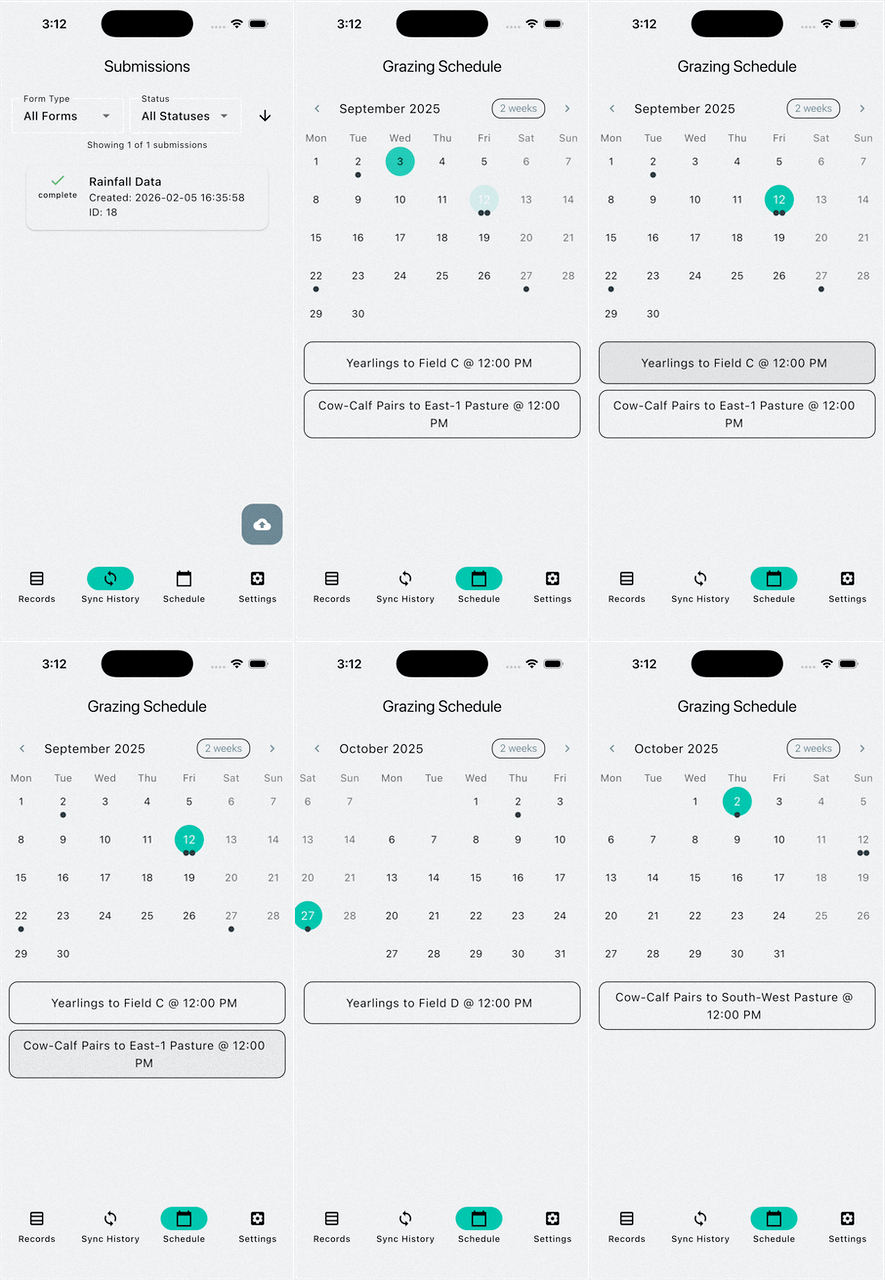
This tab displays scheduled herd movements from the web application's planning tools. Updates made from the mobile app and in the web app will appear here after syncing and re-loading the ranch.
Each day with scheduled movements displays the following information:
- Number of movements (indicated by )
- Herd name
- Destination paddock
- Time of movement
Settings Tab
This tab provides access to ranch management, notifications, troubleshooting tools, and account settings. You can switch ranches, fetch updates, configure notifications, review logs, and sign out.
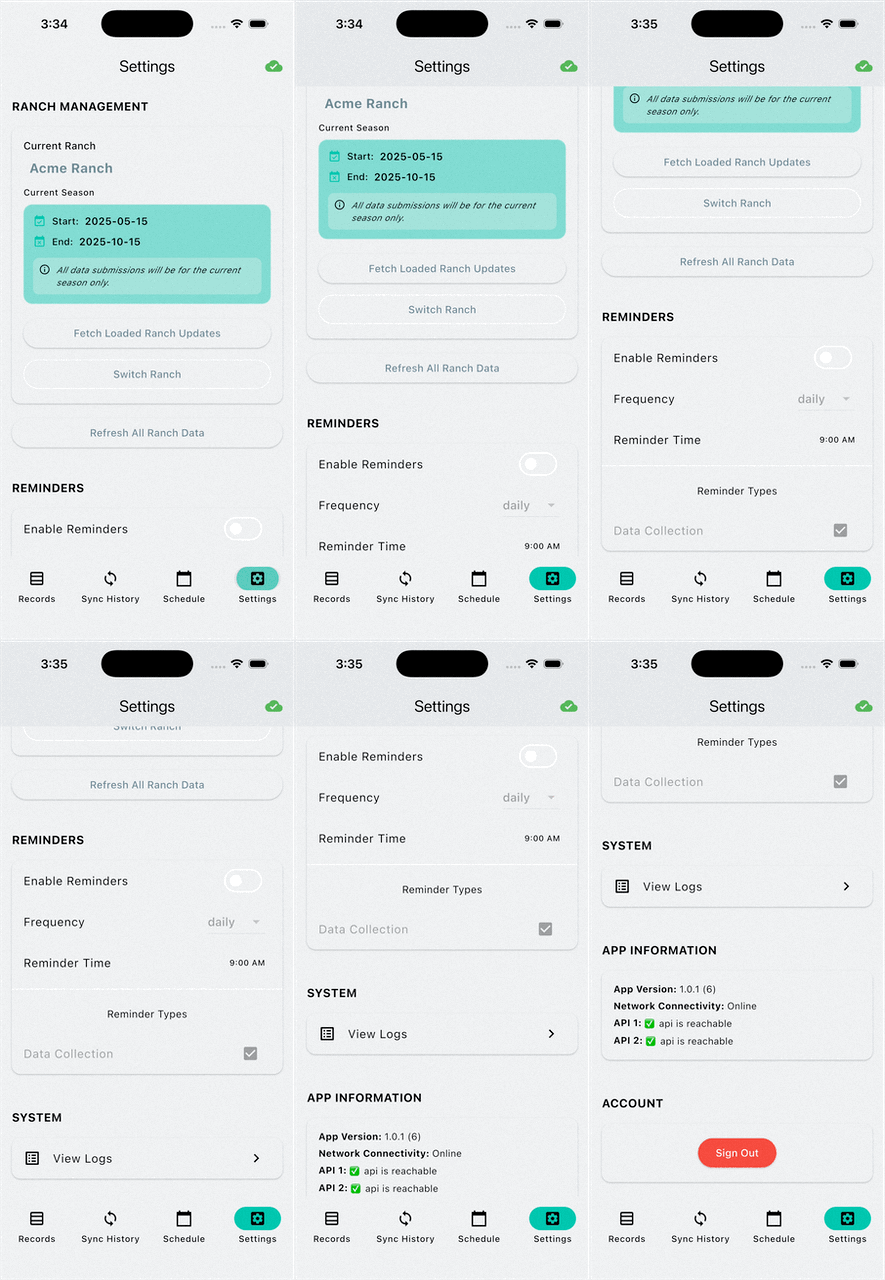
| Setting | Description |
|---|---|
| Ranch information | View currently loaded ranch and current season |
| Refresh current ranch | Fetch updates and reload the current ranch |
| Refresh all ranches | Fetch updates for all ranches and reload the list |
| Notification settings | Configure data collection notifications |
| View Logs | Review application logs for troubleshooting |
| App information | View the current app version and network connection status |
| Sign Out | Sign out of your account |
Switching Ranches
To switch to a different ranch:
- Tap the Settings tab
- Tap Switch Ranches
- Select a different ranch from the list