Navigating the Website
When you open https://fwwf.alces-flow.com you will land on the "My Ranches" page. Before you can navigate to another page, you need to load a ranch.
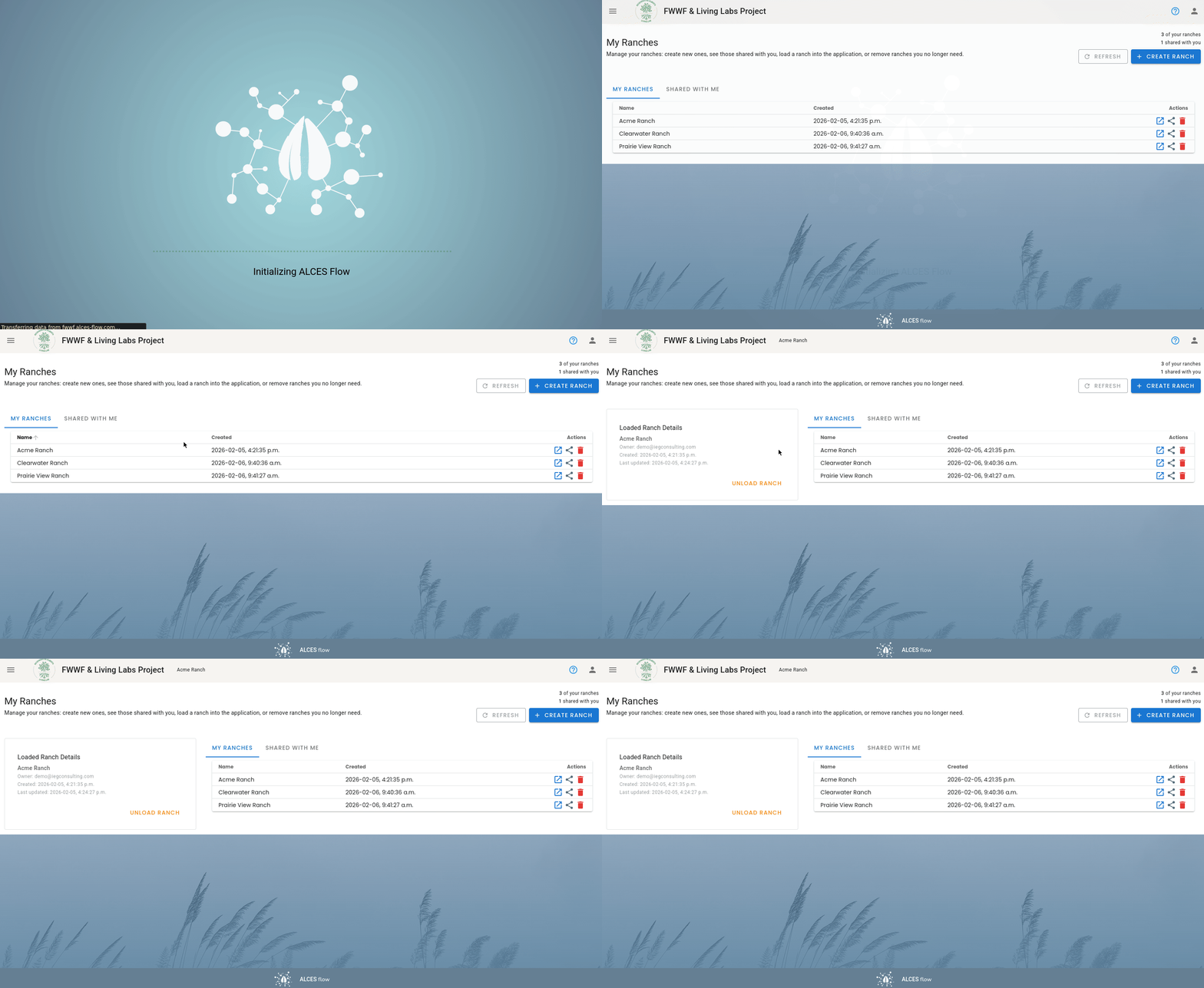
Once you have loaded a ranch, you can use the button in the top left corner to navigate to different pages.
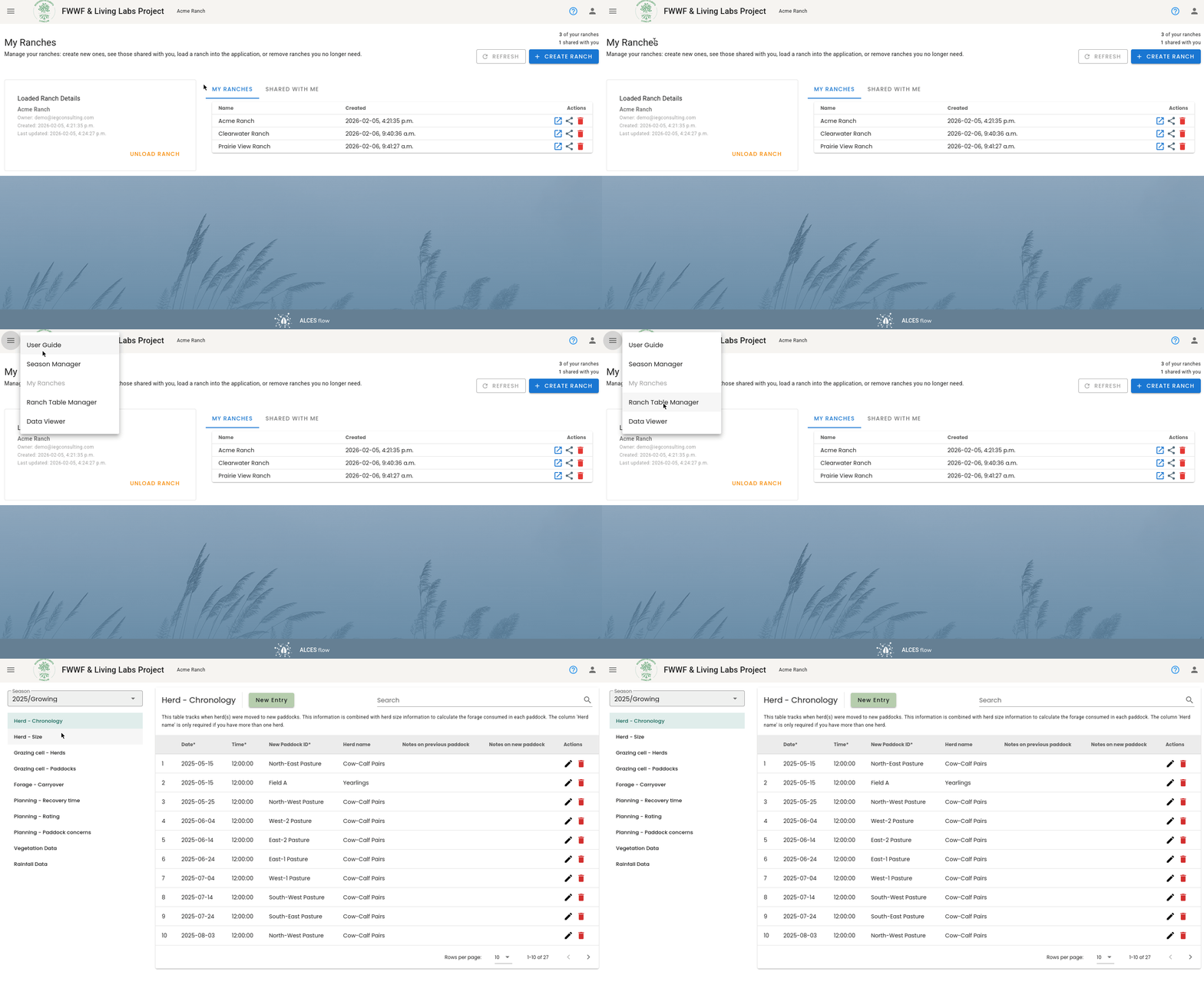
The available pages are:
- User Guide: This is the user guide that you are currently reading.
- Season Manager: This page is used to configure the (data collection) seasons that are associated with the ranch that is loaded.
- My Ranches: This page is used to load a ranch, as well as create, share, and delete ranches.
- Ranch Table Manager: This page is used to review the data that has been collected in a season.
- Data Viewer: This page is where you can view maps and charts that summarize the data that has been collected.
Season Manager
This page is used to manage the seasons that are associated with the ranch.
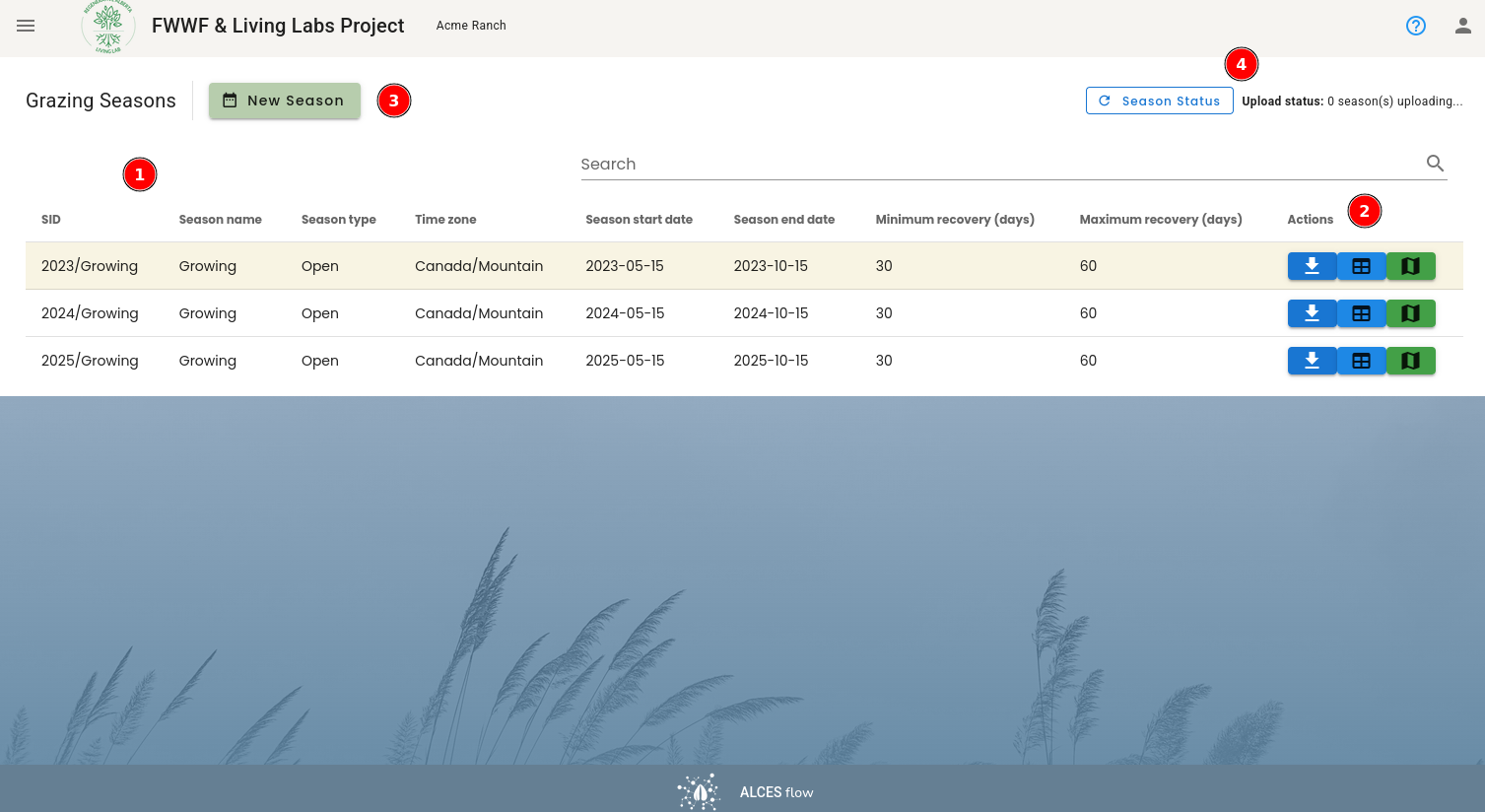
The key elements of the page are:
- This is a table that lists all of the seasons that are associated with the ranch. Each row shows a season along with the season's settings.
- These buttons are for downloading the season's data to an
.xlsxfile, to export a traditional grazing sheet of the herd moves and size, and to download the paddock boundaries file. - Click this button to start creating a new season.
- This area shows the upload status of seasons. The data viewer cannot be used until the season has finished uploading.
Use of this page is described in more detail in Setting Up A Season.
My Ranches
This page is used to load ranches, as well as create, share, and delete ranches.
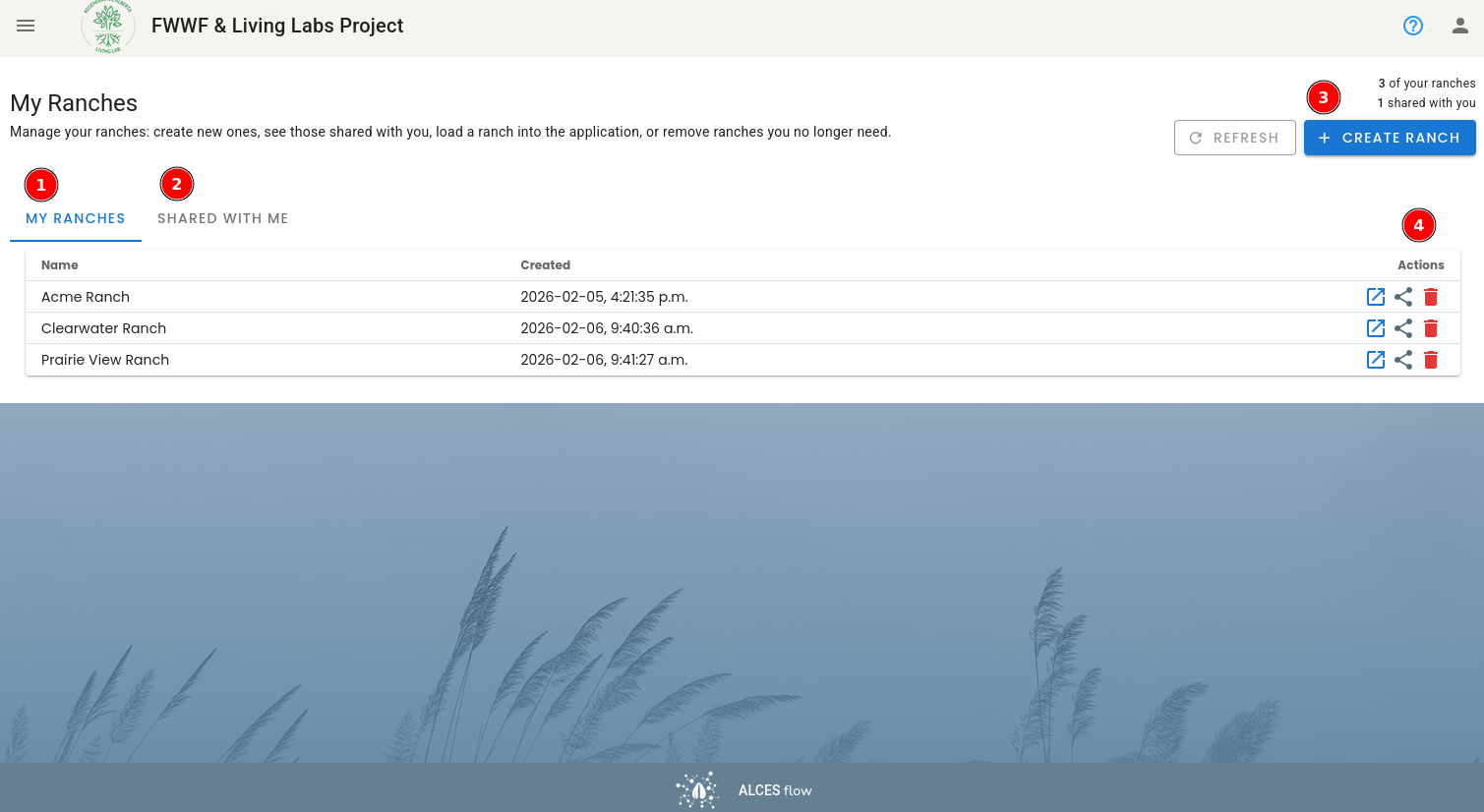
The key elements of the page are:
- The "My Ranches" tab show the ranches that are owned by your account.
- The "Shared With Me" tab shows the ranches that have been shared with your account.
- The "Create Ranch" button is used to create a new ranch (owned by your account).
- The "Actions" column provide buttons with actions that can be performed on a ranch.
Clicking on a ranch will load it. When you navigate to other pages they will use the page that is loaded.
The actions that you see in (4) are:
| Button | Action |
|---|---|
| This button loads the ranch and opens the Data Viewer | |
| Click this to share the ranch or manage which account have access to the ranch's data. | |
| Click this to delete the ranch and all of the data associated with the ranch. |
Deleting A Ranch Is Irreversible
Deleting a ranch deletes all of the data that is associated with the ranch. This includes all of the data that was collected in each season. This action cannot be reversed.
Consider downloading the data for all of the seasons before deleting a ranch. See the FAQ.
Ranch Table Manager
This page can be used to review the data that has been collected, modify/create entries in the tables, and fix errors in the data that has been collected.
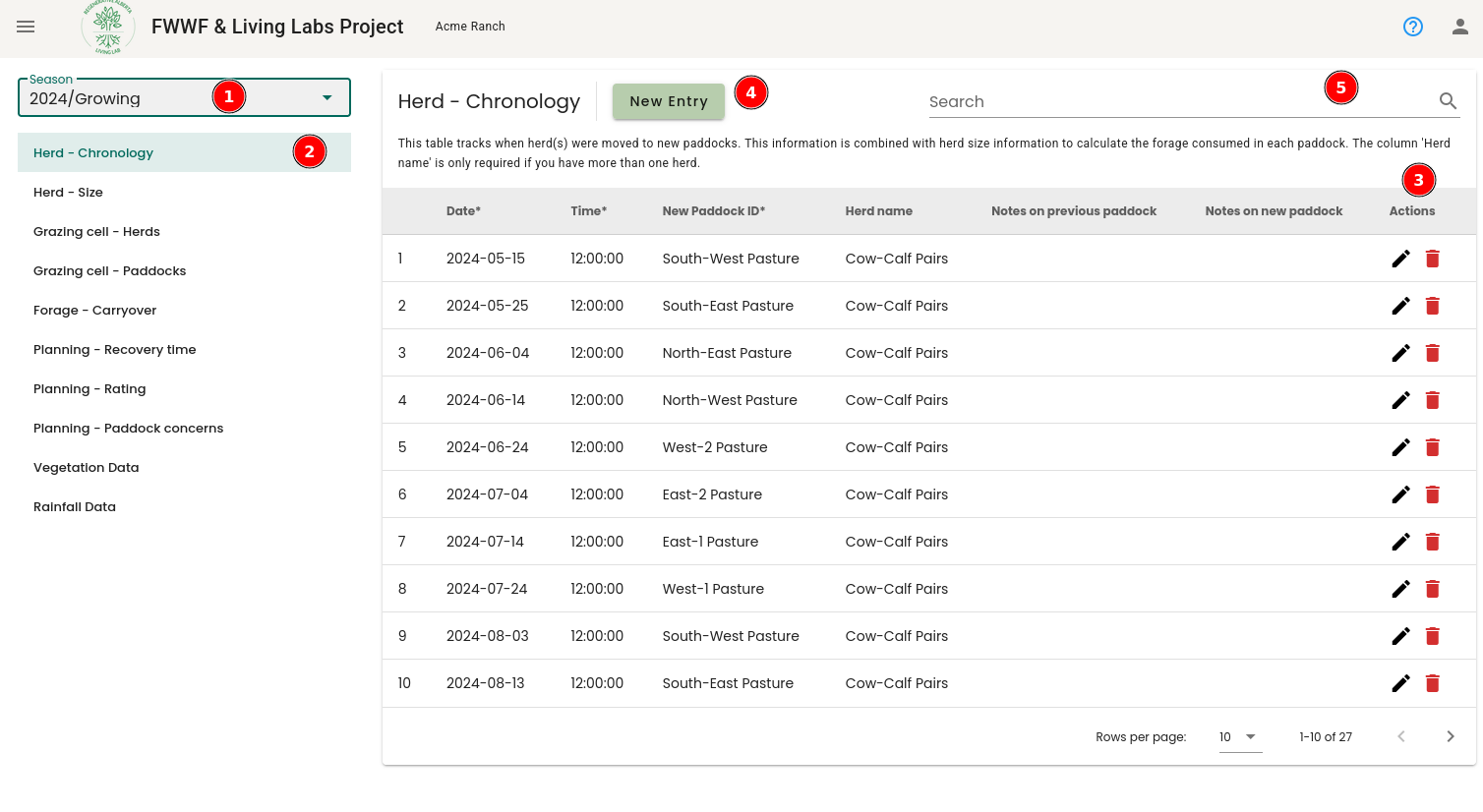
The key elements of this page are:
- The drop down selects the season whose tables you want to review/edit.
- This is a list of the tables that are associated with the season.
- Click the button to edit the data record. Click the button to delete the record.
- Click "New Entry" to add a new record (row) to the table.
- You can filter the records that are displayed using this search box.
Data Viewer
This page is used to view summaries of the data that has been collected. You can view summaries for a single season, or across multiple seasons.
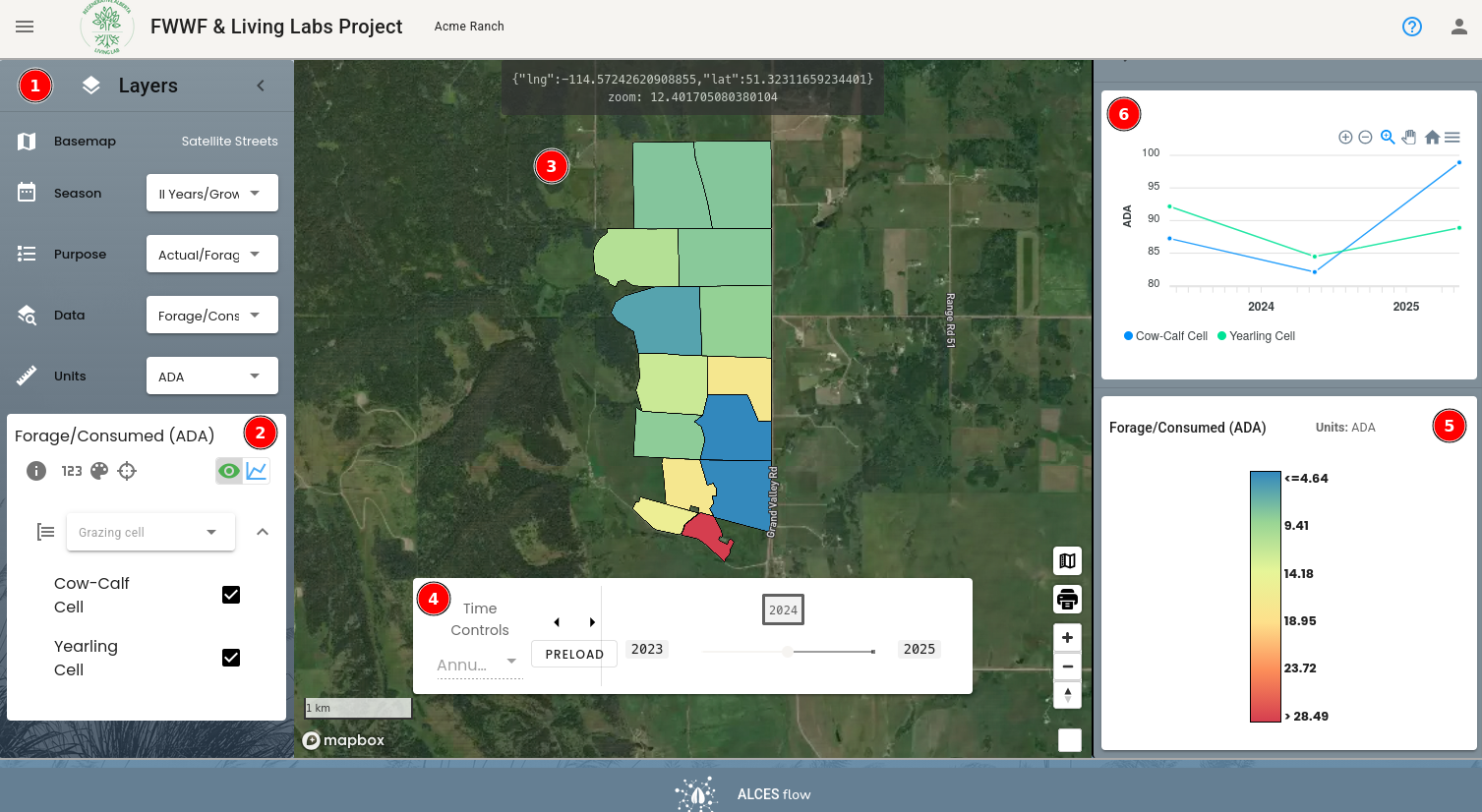
The key elements of the page are:
- This area is used to configure what you want to visualize.
- This area show information about the data that is being displayed.
- This is a map of the paddocks associated with the season, with paddocks colored according to the calculated value.
- This is the time slider to change the year that is displayed in the map.
- This is a legend of the colors associated with different values.
- This is a chart view of the data.
Use of this page is described in more detail in Viewing Data Summaries.