Creating A New Season
Before you can start collecting data, you need to create the Season. The Season is what will hold all of the data records that are associated with a season of grazing.
Note: Many of these settings will auto-fill once your ranch has at least one season
Step 1: Importing Files
Start by clicking the "New Season" button near the top of the Season Manager page. This will open the Creat a new grazing season dialog.
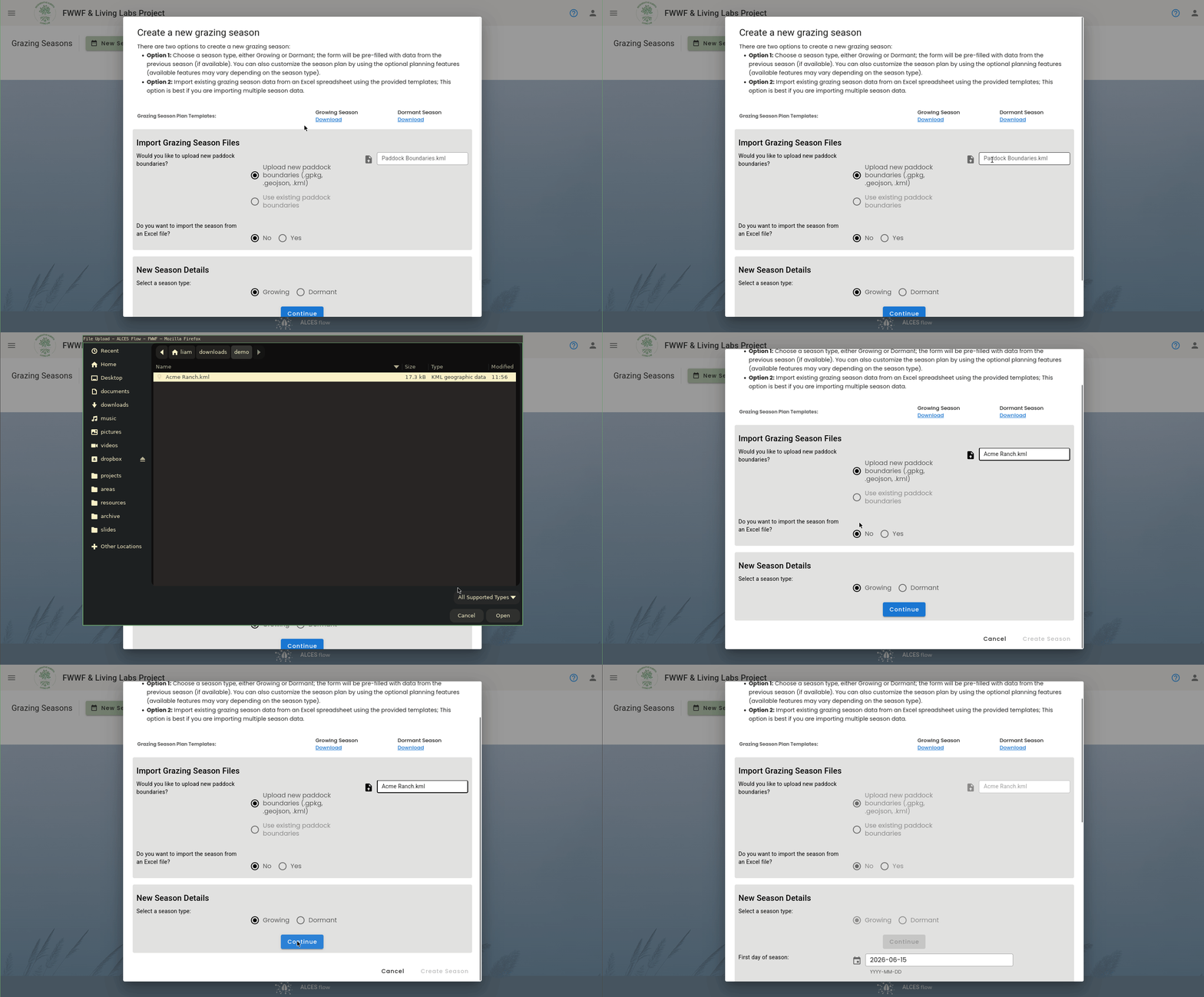
Upload a file with the paddock boundaries for the season (a .kml, .geojson, or .gpkg file). If you need guidance on creating a file with your paddock boundaries, see tutorial on creating paddock boundaries.
Try to use the same name for paddocks across years
Using the same names for paddocks each year will allow you to view analysis of how the paddock's grazing statistics across years (e.g., how much forage was produced).
The second question asks if you want to import the season from an Excel file. This is useful for importing data in bulk (e.g., historical records) but for now answer No.
Step 2: Set Season Parameters
Next, configure the season's parameters. There are two types of seasons: growing and dormant. A growing season is the period when forage plants are actively growing and livestock can graze on fresh pasture, typically from spring through fall. A dormant season is the period when forage growth has stopped due to cold temperatures or lack of moisture, and livestock must be fed stored feed such as hay or silage. Choose the appropriate season type and then set the season's parameters appropriately.
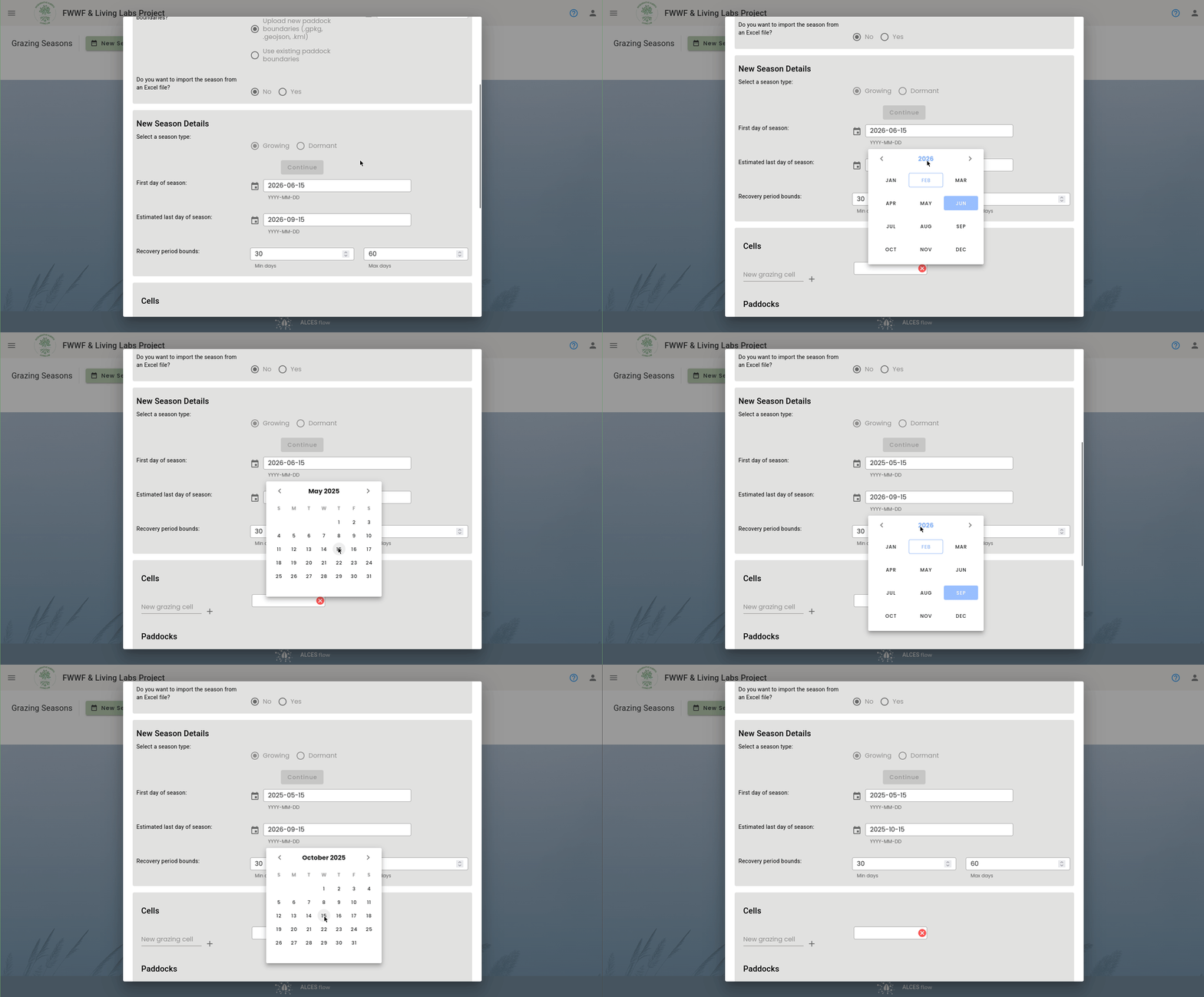
Below are the definitions of each parameter.
| Parameter | Also called | Definition |
|---|---|---|
| First day of season | Season start date | Set this to the first day of the season. |
| Estimated last day of season | Season end date | Set this to the last day of the season. You can update this later in the season when the actual end date is known. |
| Recovery period bounds | Set this to the minimum and maximum recovery time that paddocks need. |
Step 3: Cells, Herds, and Additional Parameters
Next, configure the grazing cells, the paddocks, and the herds. A grazing cell is a group of paddocks that will be grazed by one or more herds. Each paddock and herd can only be in one grazing cell. The questions in this section are used to configure the grazing cells (each column is a grazing cell), the paddocks that are assigned to each grazing cell, and the herds that are assigned to each grazing cell.
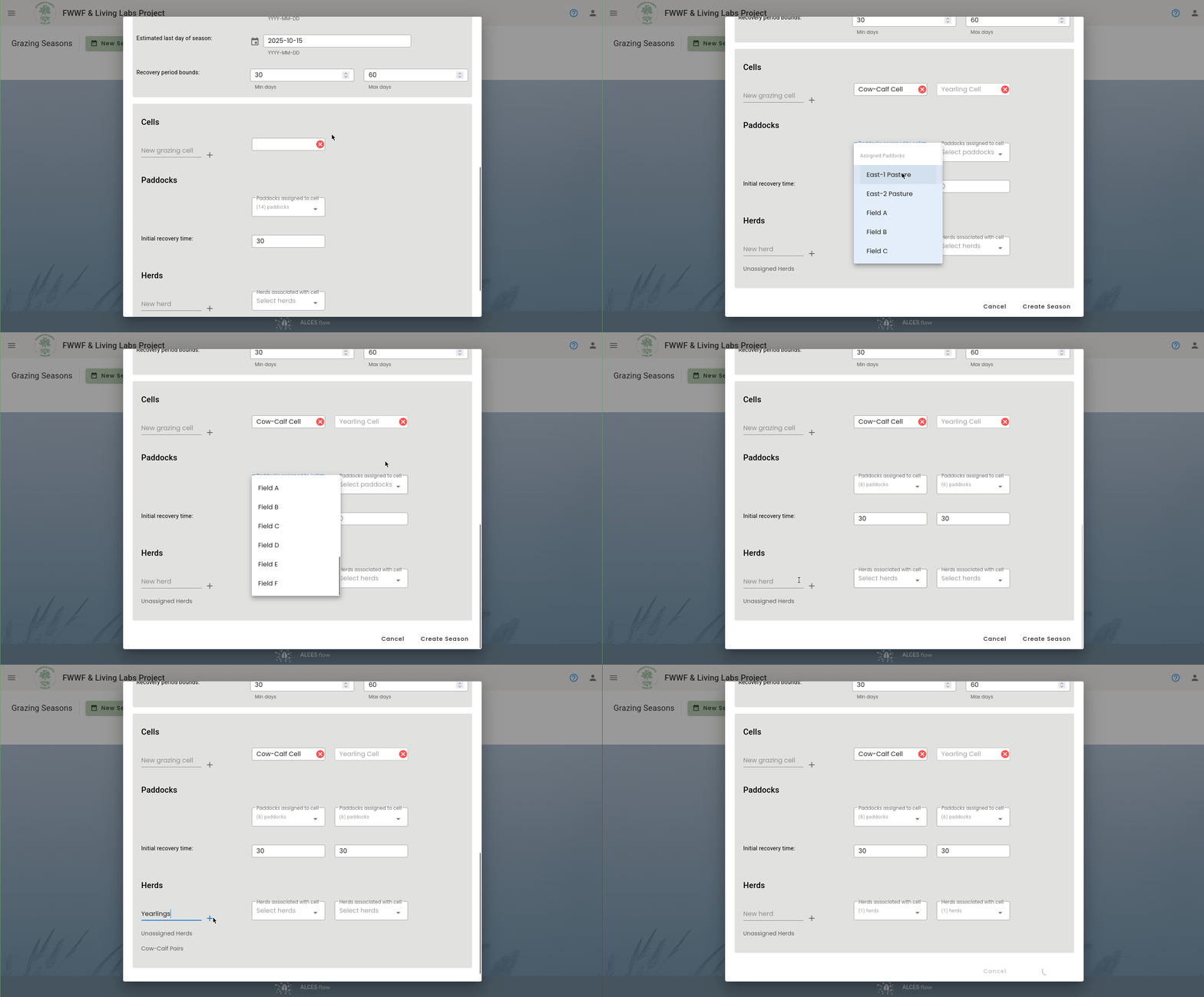
Names aren't needed if there is only one
If you have a single grazing cell you can leave the cell's name blank. Similarly, if you have a single herd you can leave the herd's name blank.
Click Create Season to finish creating the season.
Step 4: Checking The Upload Status
It takes a few minutes for the system to process your upload. Use the Season Status button to check if your upload is complete.
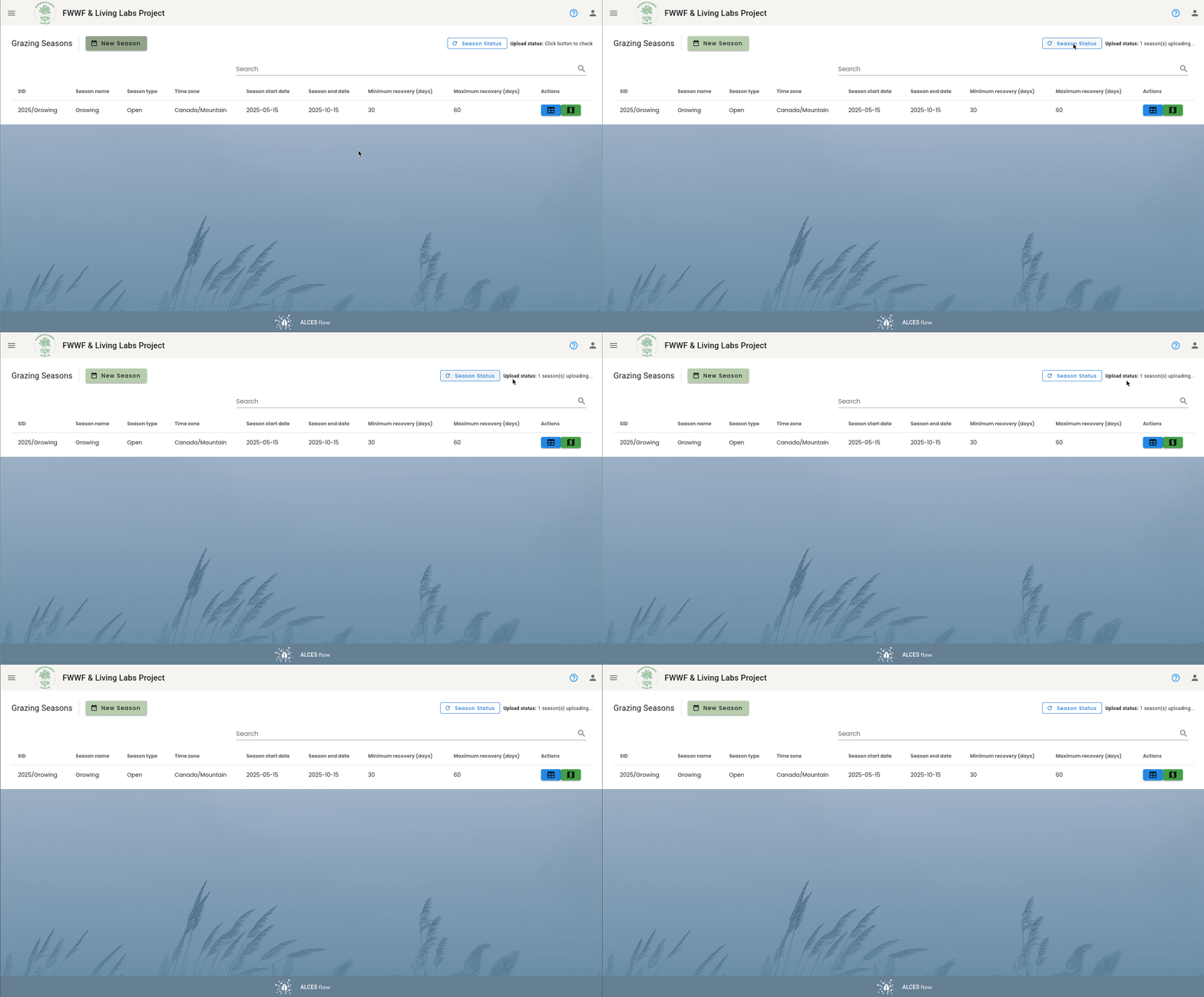
Step 5: Double Check The Configuration
The questions in Step 3 configure tables that the system uses to interpret the data you collect. Before proceeding, you should make sure that the size of each herd, as of the season's start date, is set properly.
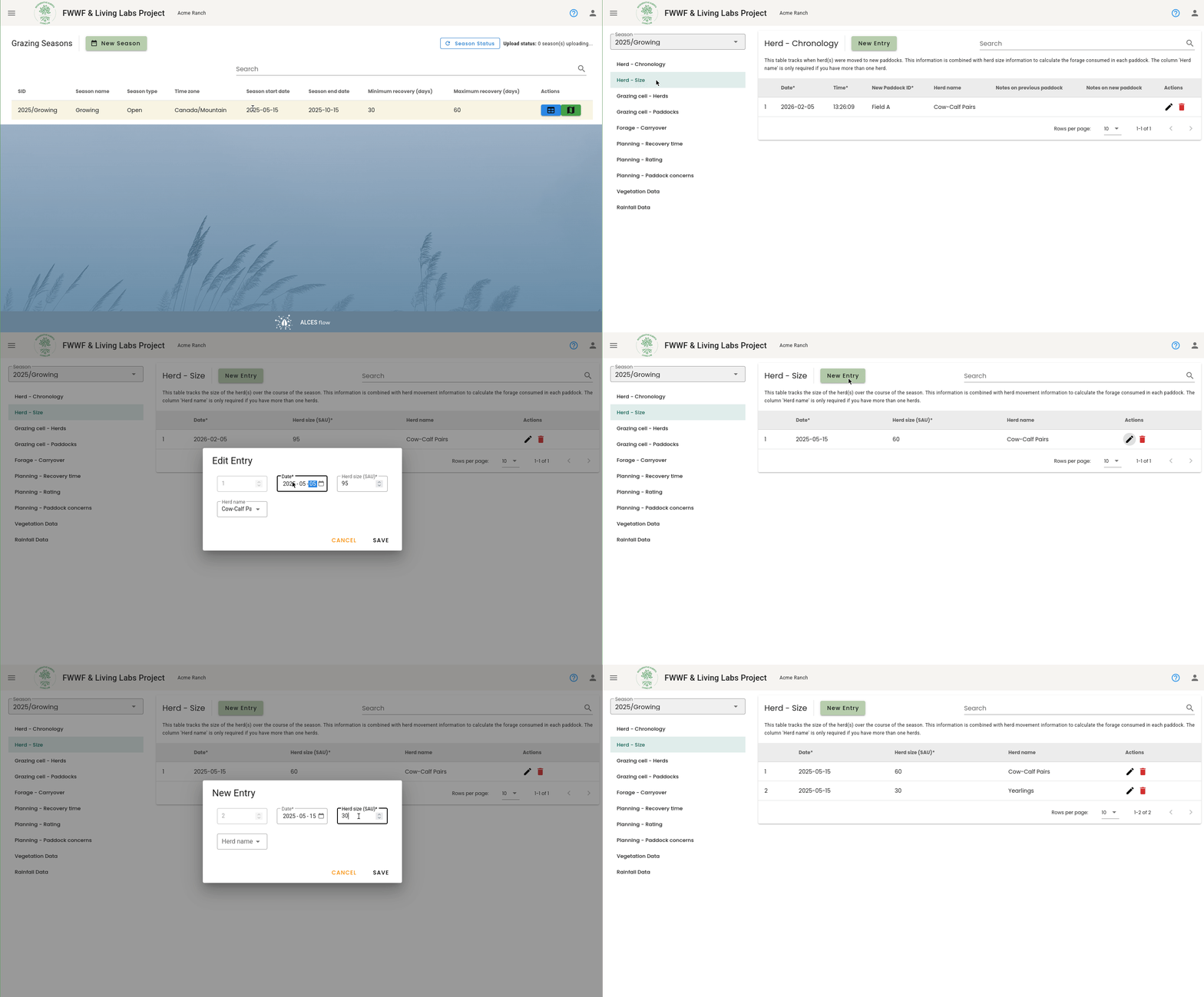
Note that the mobile app can record herd size in various units, but on the website, herd size must be entered in SAUs. For reference, 1 SAU equals 1000 lb (454 kg) of cow.
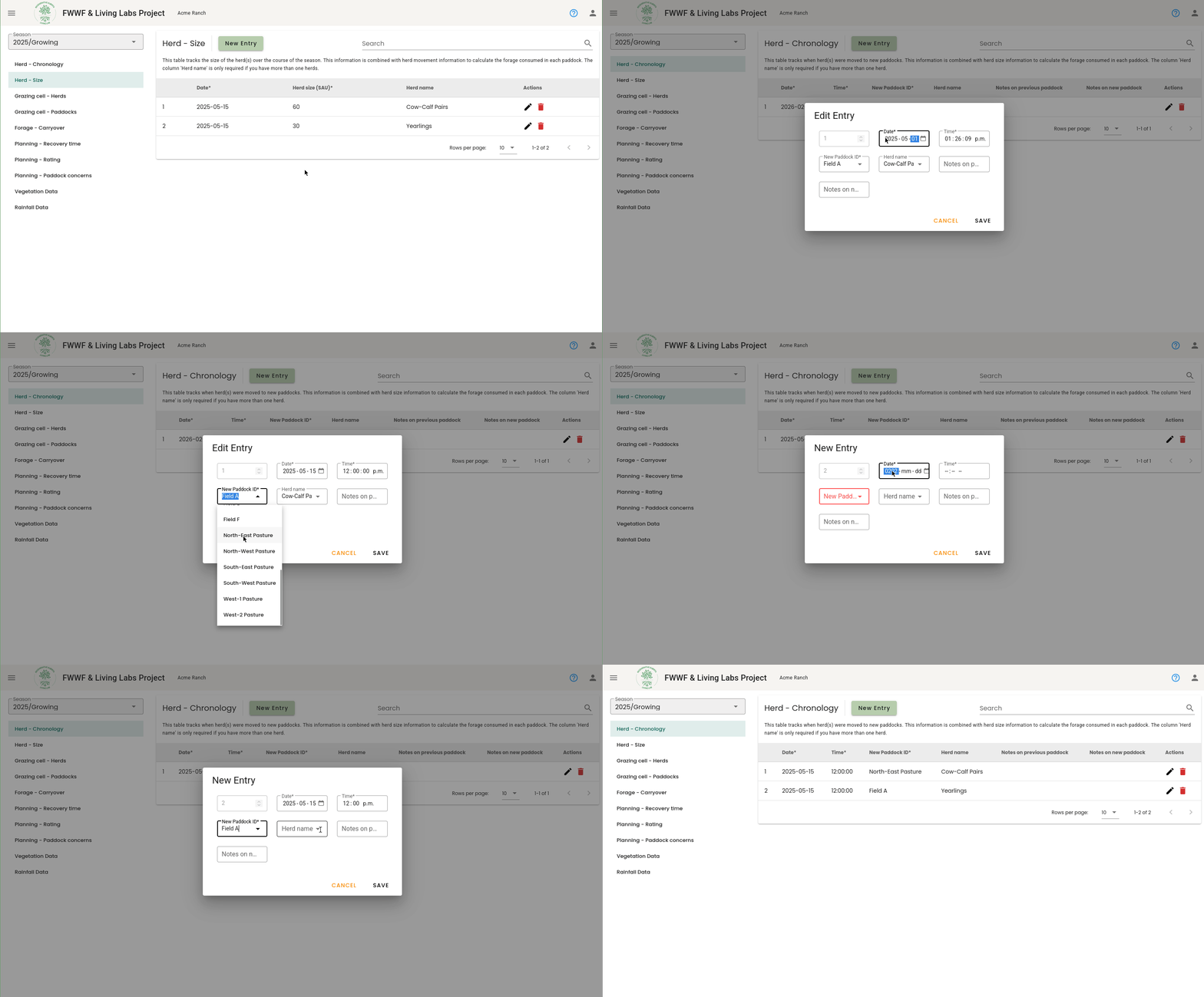
Next, make sure that the starting position of each herd is correct. This is done by creating a records in the "Herd - Chronology" table that indicate the paddocks that each herd is in on the Season start date.